Debian Package OTA Update
This tutorial walks you through building and updating an IoT application packaged as a Debian package on a fleet of IoT devices, using the SocketXP OTA update feature end-to-end.
Before you start, make sure you have downloaded and installed the SocketXP agent on your IoT devices and completed the Getting Started guide.
Sample App
We'll use a simple C program to demonstrate the OTA update workflow, and package the compiled binary as a Debian package. The app prints "Hello, OTA update!" every 10 minutes and runs as a Linux systemd service on the device.
Note
We're using C for this example, but the app can be written in any language, such as Java, C++, Go, Python or JavaScript.
/*
 * To build: gcc myapp.c -o myapp
 * To run: ./myapp
 * Output: "Hello, OTA update!"
 */

#include <stdio.h>
#include <unistd.h>

int main() {
    while (1) {
        printf("Hello, OTA update!\n");
        fflush(stdout); // Ensure immediate output
        sleep(600); // in seconds
    }
    return 0;
}
The C program, build script, and Debian package build scripts used in this tutorial are available in our official GitHub repository.
Build the App Binary
Clone the repository:
For this example, we'll use the debian_pkg folder:
~/ota-update-build-artifacts/debian_pkg$ ls myapp/debian/
control  myapp.service  postinst  postrm  prerm
The debian_pkg folder contains:
- A
myappfolder containing the app source (myapp.c) and amakefileto compile the app and build a Debian package. Thedebiansubfolder has the scripts required to install and configure the app binary as a Debian package on the target device. - An
update.shshell script — the workflow script that runs on the target device and updates themyappDebian package. - A
make_artifact.shshell script — packages the Debian package and workflow script into atar.gzartifact.
Create a New Version of the App
Edit myapp.c to print "Hello, OTA update! Version 1.0.0" — we'll call this version 1.0.0 of the app.
/*
 * To build: gcc myapp.c -o myapp
 * To run: ./myapp
 * Output: "Hello, OTA update!"
 */

#include <stdio.h>
#include <unistd.h>

int main() {
    while (1) {
        printf("Hello, OTA update! Version 1.0.0\n");
        fflush(stdout); // Ensure immediate output
        sleep(600); // in seconds
    }
    return 0;
}
Build the app and package it as a Debian package using make all:
$ cd myapp
$ make all
++ Building myapp
gcc myapp.c -o myapp
++ Building Debian package
rm -rf debian_build
mkdir -p debian_build/myapp_1.0.0
mkdir -p debian_build/myapp_1.0.0/usr/bin
cp myapp debian_build/myapp_1.0.0/usr/bin
mkdir -p debian_build/myapp_1.0.0/etc/systemd/system
cp debian/myapp.service debian_build/myapp_1.0.0/etc/systemd/system
mkdir -p debian_build/myapp_1.0.0/DEBIAN
cp debian/postinst debian_build/myapp_1.0.0/DEBIAN
cp debian/prerm debian_build/myapp_1.0.0/DEBIAN
cp debian/postrm debian_build/myapp_1.0.0/DEBIAN
cp debian/control debian_build/myapp_1.0.0/DEBIAN
dpkg-deb --build --root-owner-group debian_build/myapp_1.0.0
dpkg-deb: building package 'myapp' in 'debian_build/myapp_1.0.0.deb'.
Now that you've built the app binary and the Debian package, create a tar.gz style artifact using them.
Why a tar.gz archive?
SocketXP OTA update expects the artifact to be uploaded as a tar.gz archive file containing the Debian package and the workflow script update.sh. When the artifact is downloaded to the target device, the SocketXP agent unzips and extracts the tar.gz file contents into the /tmp directory, then starts executing the update.sh workflow script contained in the myapp_1.0.0 folder.
Go back to the parent directory and run make_artifact.sh:
~/ota-update-build-artifacts/debian_pkg/myapp$ cd ..
~/ota-update-build-artifacts/debian_pkg$ ls
make_artifact.sh  myapp  update.sh
~/ota-update-build-artifacts/debian_pkg$ sh make_artifact.sh
myapp_1.0.0/
myapp_1.0.0/myapp_1.0.0.deb
myapp_1.0.0/update.sh
~/ota-update-build-artifacts/debian_pkg$ ls
make_artifact.sh  myapp  myapp_1.0.0.tar.gz  update.sh
Verify the contents of the tar.gz file:
Workflow Script - update.sh
The OTA update workflow script contains all the instructions required to update the myapp service running on the IoT devices.
#!/bin/bash

#================================================
# MyApp Update Workflow Script
#================================================

# backup the existing app
mv /usr/bin/myapp /usr/bin/myapp.bkup

# update the myapp package
sudo dpkg -i myapp_*.deb

# verify the app is working fine
service_name="myapp"
if systemctl --quiet is-active "$service_name"; then
  echo "$service_name is running."
  # update success
  # clean up the backup and exit
  rm -f /usr/bin/myapp.bkup
else
  echo "$service_name is not running."
  # update failed
  # restore from the backup
  mv /usr/bin/myapp.bkup /usr/bin/myapp
  # start the previous working version
  systemctl start myapp
fi
What the script does:
- Creates a backup of the
myappbinary already running on the device. - Installs the Debian package containing the new version of the app using
dpkg -i, which:- Runs the package's
prerm/postrmscripts, which stop themyappservice. - Copies the new version of
myappto the/usr/bindirectory. - Runs the package's
postinstscript, which starts themyappservice and kicks off the new version of the app binary.
- Runs the package's
- Verifies the service is running fine. If the app fails to run properly after the update, the script restores the previous working version from the backup and starts the app service.
- If the app runs fine after the update, it deletes the backup files and exits.
Learn more about writing your own workflow script in How to create an OTA Update Workflow Script.
Upload the Artifact
Log in to your SocketXP account and go to the OTA Update page. In the Artifacts table, click Upload new artifact.
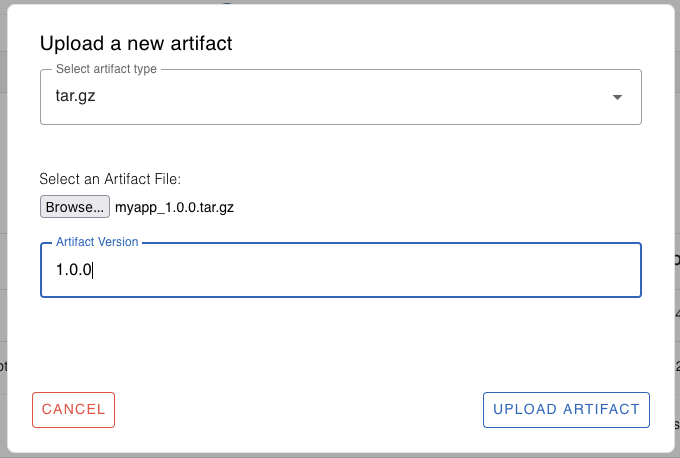
Browse and select the myapp_1.0.0.tar.gz file you just built. Specify the artifact version, 1.0.0 in this example. Click Upload to upload the artifact to the cloud registry. You'll see a message saying "File uploaded successfully".
Deploy the Artifact
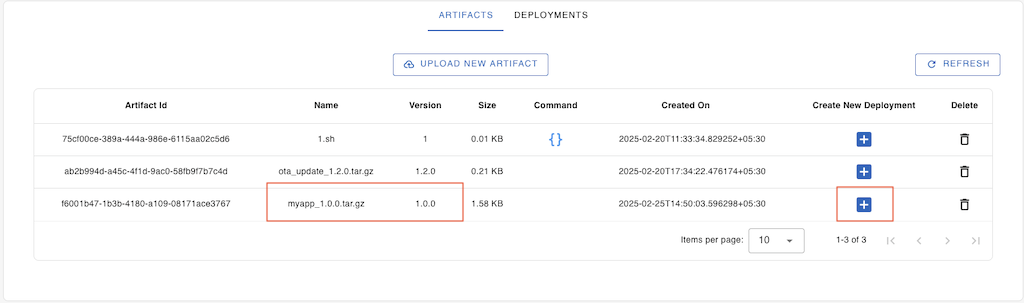
From the Artifacts table, select the artifact you just uploaded.
Note
If you don't see your artifact yet, click Refresh to reload the table data.
Click the + icon next to the artifact to create a new deployment.
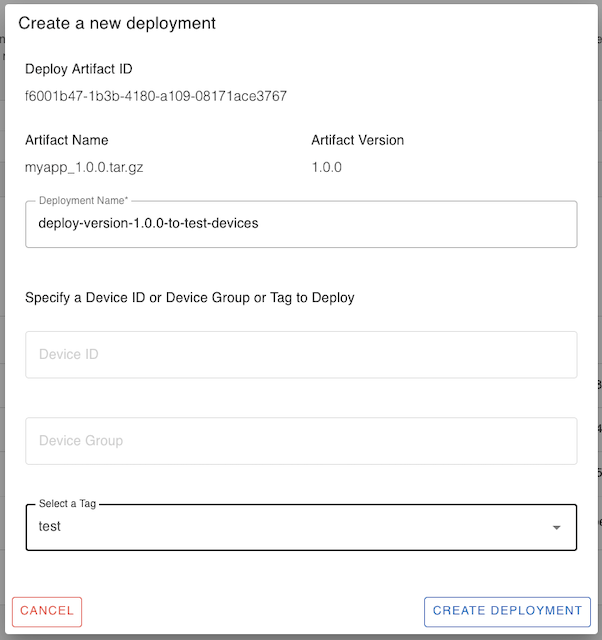
Give the deployment a name, for example, deploy-version-1.0.0-to-test-devices. Specify the target device ID, device group, or tag to deploy the artifact on.
Note
You can deploy the artifact on a single device ID, device group, or device tag. To deploy on more than one group or tag, repeat the "Create New Deployment" process for each.
Click Create Deployment. Go to the Deployments tab and click Refresh.
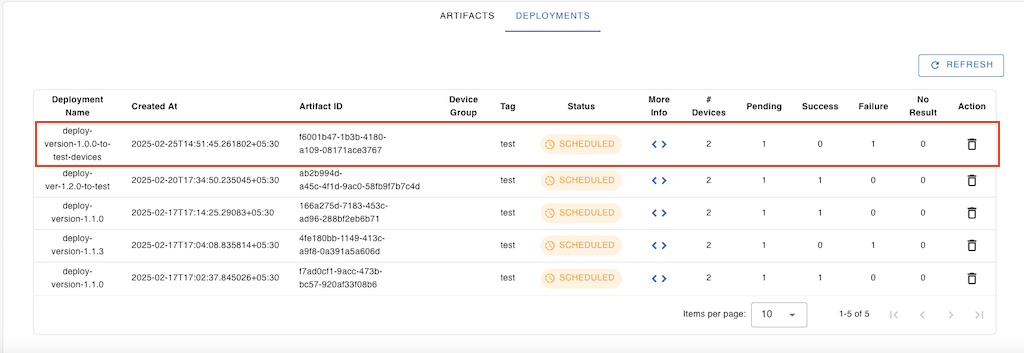
Select the deployment to see its progress. Click More Info < > to monitor the progress on each target device in the group or tag. Click Refresh to view the progress.
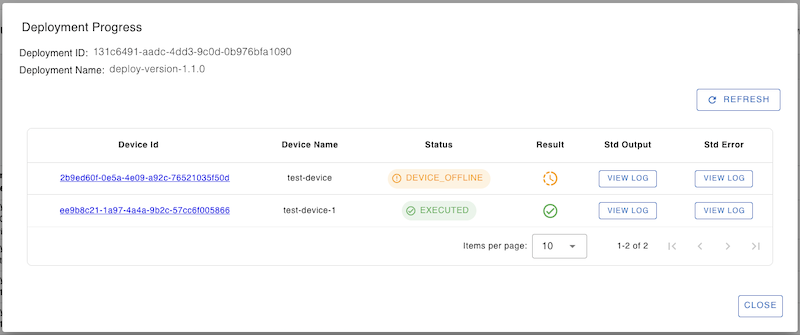
You can check the stdout and stderr logs generated by the update process by clicking the view log buttons.
Verify the Update
Log in to one of the devices to check if the myapp deployment was successful:
$ systemctl status myapp
● myapp.service - myapp service
     Loaded: loaded (/etc/systemd/system/myapp.service; enabled; vendor preset: enabled)
     Active: active (running) since Tue 2025-02-25 00:25:47 UTC; 2 seconds ago
   Main PID: 486462 (myapp)
      Tasks: 1 (limit: 3301)
     Memory: 152.0K
        CPU: 291ms
     CGroup: /system.slice/myapp.service
             └─486462 /usr/bin/myapp

Feb 25 00:25:47 ubuntu myapp[486462]: Hello, OTA update! Version 1.0.0
You can also view the app logs using journalctl:
$ journalctl -u myapp -n 10
Feb 24 02:00:52 ubuntu myapp[486462]: Hello, OTA update!
Feb 25 00:25:47 ubuntu myapp[486462]: Hello, OTA update! Version 1.0.0
You have successfully updated a Debian package app on remote IoT devices using SocketXP OTA update.
Next Steps
Now that you've learned how to publish a Debian package as an OTA update, check out the other artifact types: